Question # 4
Why does the initializer for the following struct need the keyword self?

A.
self is used to indicate to the reader that the parameter is being referenced.
B.
self is always needed when you are setting properties in an initializer.
C.
self is needed to distinguish between the property and the parameter with the same name.
D.
self is only needed when the property does not have a default value.
Full Access
Answer:
C
Explanation:
This question belongs to Swift Programming Language , specifically the objective covering structs, properties, and initializers .
In the struct, both the property and the initializer parameter are named age:
struct person {
var age: Int
init(age: Int) {
self.age = age
}
}
Here, age inside the initializer could refer to either the property of the struct or the parameter passed into the initializer. Swift uses self.age to clearly mean the property that belongs to the current instance , while plain age refers to the initializer parameter . So self.age = age means: assign the parameter value to the instance property.
That is why C is correct. The keyword self is required here to remove ambiguity between two identifiers with the same name.
The other options are incorrect:
A is wrong because self here is not pointing to the parameter; it points to the instance property.
B is wrong because self is not always required in every initializer assignment. It is specifically needed here because of the naming conflict.
D is wrong because whether the property has a default value is not the reason self is needed in this example.
So the correct answer is C. self is needed to distinguish between the property and the parameter with the same name.
Question # 5
Refer to this image to complete the code.

Note: You will receive partial credit for each correct answer

Full Access
Answer:
Answer: 
Explanation:
 C:\Users\Waqas Shahid\Desktop\Mudassir\Untitled.jpg
This question belongs to View Building with SwiftUI , especially the objectives for using List views to iterate through collections and structuring views with standard SwiftUI containers. The screenshot shows two grouped sets of rows: one headed MY FRIENDS and one headed MY PETS . In SwiftUI, the correct container for a scrollable table-style presentation of rows is List, and the correct way to divide that list into labeled groups is Section. Apple documents List as a container that presents data in a single-column row-based layout, and Section as a way to organize list content into grouped areas with headers and optional footers. That is exactly the structure shown in the image. ( developer.apple.com , developer.apple.com )
The ForEach(names, id: \.self) and ForEach(pets, id: \.self) lines are already iterating through the arrays, so each ForEach should be wrapped inside a Section. The section labels such as " My Friends " and " My Pets " are provided with the header: label. So the intended code structure is:
List {
Section {
ForEach(names, id: \.self) { name in Text(name) }
} header: {
Text( " My Friends " )
}
Section {
ForEach(pets, id: \.self) { pet in Text(pet) }
} header: {
Text( " My Pets " )
}
}
This matches the UI shown in the image and aligns directly with SwiftUI list and section composition patterns in App Development with Swift.
Question # 6
Match the Swift Properly Wrapper names to the correct descriptions.

Full Access
Answer:
Answer: 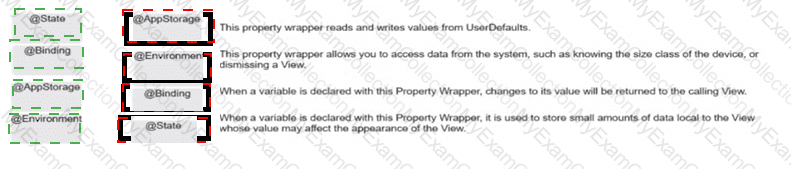
Explanation:
@AppStorage → This property wrapper reads and writes values from UserDefaults.
@Environment → This property wrapper allows you to access data from the system, such as knowing the size class of the device, or dismissing a view.
@Binding → When a variable is declared with this property wrapper, changes to its value will be returned to the calling view.
@State → When a variable is declared with this property wrapper, it is used to store small amounts of data local to the view whose value may affect the appearance of the view.
This question belongs to View Building with SwiftUI , specifically the objective about using @State, @Binding, @Environment, and related wrappers to share and manage data between views. @AppStorage is the wrapper that connects a SwiftUI value to UserDefaults, so it is the correct match for reading and writing persisted user defaults data. Apple documents AppStorage as a property wrapper type that reflects a value from UserDefaults and updates the view when that value changes.
@Environment is used to read values supplied by the system or ancestor views, including interface context like size classes and actions such as dismissing a presented view. Apple’s environment documentation explains that SwiftUI automatically sets and updates many environment values for layout and behavior, and App Dev Training materials show environment values being used to dismiss a view.
@Binding represents a two-way connection to a value owned elsewhere, typically in a parent view, so changes made through the binding are reflected back in the source of truth. Apple’s SwiftUI data-flow guidance describes bindings as the mechanism used when a child view needs shared control of state with another view.
@State is the correct wrapper for small, local, mutable view state. Apple describes State as the source of truth for data local to a view and recommends it for interface state that affects rendering.
Question # 7

Which two assignments of a value to direction are allowed? (Choose 2.)
A.
direction = CompassPoint(north)
B.
direction = CompassPoint.north
C.
direction = north
D.
direction = .north
E.
direction = direction.north
Full Access
Answer:
B, D
Explanation:
This question belongs to Swift Programming Language , specifically the domain covering basic Swift types and how Swift handles enumerations . The code defines an enum named CompassPoint with the cases north, south, east, and west, and then declares direction as type CompassPoint. In Swift, an enum case can be assigned using the fully qualified form CompassPoint.north, so B is valid. Swift also allows the shorthand form .north when the compiler already knows the expected type is CompassPoint, so D is also valid. Apple’s Swift language documentation explains that once a variable is known to be of a specific enumeration type, you can set its value using the shorter dot syntax.
The other options are not allowed. A is invalid because enum cases are not assigned using constructor-style syntax like CompassPoint(north). C is invalid because north by itself is not enough unless it is written with dot shorthand in a context with inferred enum type. E is invalid because north is a case of the enum type, not a member accessed from the variable instance as direction.north. Swift enum cases are referenced from the enum type or by shorthand dot syntax, not as instance properties.
Question # 8
Which code correctly creates a size 300 rectangular Image View with rounded corners that displays the entire image, regardless of size?
A)

B)

C)

D)

A.
Option A
B.
Option B
C.
Option C
D.
Option D
Full Access
Answer:
D
Explanation:
This question belongs to View Building with SwiftUI , specifically the objective on positioning and laying out a single SwiftUI view with standard views and modifiers.
The correct answer is D because it uses the right combination of SwiftUI image modifiers for all three requirements:
the image is made resizable with .resizable()
it is given rounded corners with .clipShape(RoundedRectangle(cornerRadius: 50))
it displays the entire image with .aspectRatio(contentMode: .fit)
it is sized with .frame(width: 300)
The key part is .aspectRatio(contentMode: .fit) . In SwiftUI, .fit scales the image so the whole image remains visible inside the available frame. That matches the requirement “displays the entire image, regardless of size.†By contrast, .fill may crop part of the image, so options using .fill do not satisfy the requirement.
Why the others are wrong:
Option A uses .fill, so the full image may not remain visible.
Option B uses invalid modifiers such as .sizablc() and .size(width: 300), and also uses Rectangle(cornerRadius: 50), which is not the correct rounded-rectangle shape syntax.
Option C also uses invalid syntax and .fill, which can crop the image.
Option D uses valid SwiftUI syntax and the correct content mode.
So the correct choice is D , because it is the only option that correctly creates a 300-width image with rounded corners while ensuring the entire image is shown.
Question # 9
Which property wrapper allows you to read data from the system or device settings?
A.
@State
B.
@Environment
C.
@Binding
D.
@StateObject
Full Access
Answer:
B
Explanation:
Comprehensive and Detailed Explanation From App Development with Swift domains:
This question belongs to View Building with SwiftUI , specifically the objective about using property wrappers such as @State, @Binding, and @Environment to manage and share data between views.
The correct answer is @Environment because it is used to read values provided by the system or the surrounding view environment. These values can include device-related or system-provided information such as size classes, color scheme, locale, and dismiss actions. In SwiftUI, @Environment gives a view access to contextual information that it does not own directly, but which is supplied by the framework or ancestor views.
The other options are not correct for this purpose:
@State is used for local mutable state owned by the current view.
@Binding is used to create a two-way connection to state owned elsewhere, usually in a parent view.
@StateObject is used to create and own an observable reference-type object for the lifetime of the view.
So if you want a SwiftUI view to read data coming from system or device settings, the correct property wrapper is @Environment .
Question # 10
Given the function, which two function calls are valid? (Choose 2.)

A.
let sum = rightSum(100, num2: SO, and: 20)
B.
let sum - rightSum(100, by: 30, and: 20)
C.
let Sun - rightSum(numl: 100, by: SO, and: SO)
D.
let sum r\ ght5um(100, by: 50)
E.
let sun = rightSum(numl: 100, num2: 50)
Full Access
Answer:
B, D
Explanation:
This question belongs to Swift Programming Language , specifically the domain on functions , including internal and external parameter names and default parameter values .
The function is defined as:
func rightSum(_ num1: Int, by num2: Int, and num3: Int = 25) - > Int {
return num1 + num2 + num3
}
This means:
the first parameter uses _, so it has no external label
the second parameter must use the external label by
the third parameter must use the external label and
the third parameter also has a default value of 25, so it may be omitted
Now evaluate each option:
A is invalid because it uses num2: instead of the required external label by:
B is valid because it correctly uses no label for the first argument, then by: and and:
C is invalid because the first parameter cannot be called with num1: since the external label is omitted with _
D is valid because it correctly passes the first argument unlabeled and the second with by:, while omitting the third argument so Swift uses the default value 25
E is invalid because it uses num1: and num2: instead of the required calling syntax
So the two correct function calls are B and D .
Question # 11
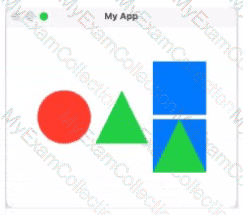
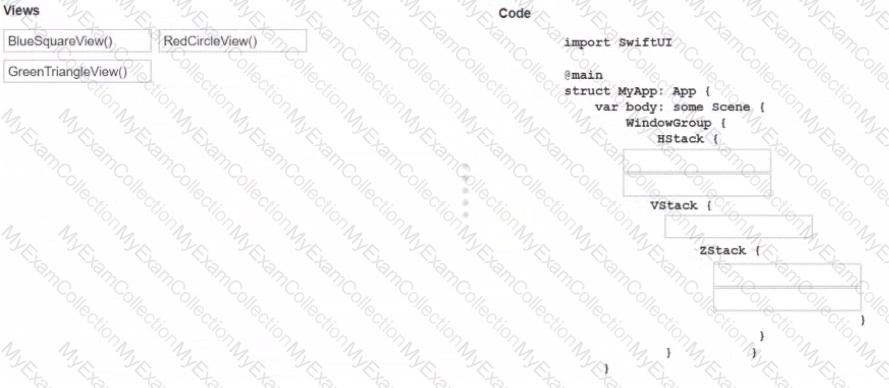
Drag the views on the left to the correct locations m the code on the fight to match the shown canvas.
You may use each View once, more than once, or not at all.
Full Access
Answer:
Answer: 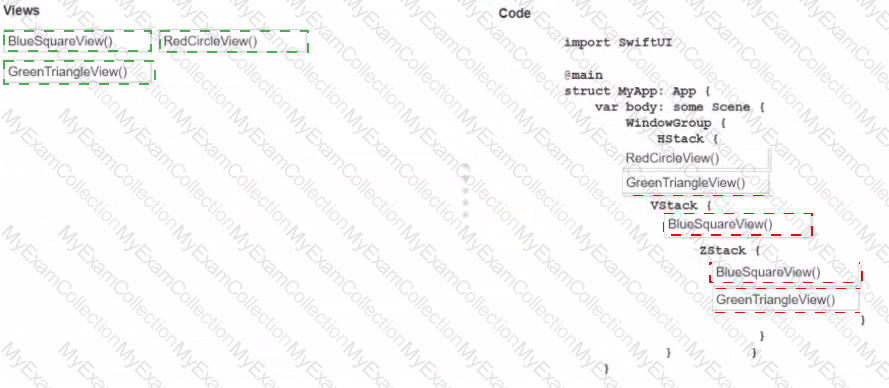
Explanation:
RedCircleView()
GreenTriangleView()
BlueSquareView()
BlueSquareView()
GreenTriangleView()
This question belongs to View Building with SwiftUI , specifically arranging views with HStack , VStack , and ZStack . In SwiftUI, an HStack lays views out horizontally, a VStack lays them out vertically, and a ZStack overlays views front-to-back. Apple’s stack layout guidance describes these three containers exactly this way.
To match the canvas, the main HStack must show three items from left to right: a red circle , a green triangle , and then a right-side vertical group. That means the first two blanks inside HStack are RedCircleView() and GreenTriangleView(). On the right side, the VStack shows a blue square on top, so the next blank is BlueSquareView(). Under that, the lower-right shape is made by layering a green triangle on top of a blue square , which means the ZStack must contain BlueSquareView() first as the background and GreenTriangleView() second as the foreground. SwiftUI’s documentation notes that ZStack aligns and overlays its children in depth order, which is why the square goes before the triangle.
So the correct placement order is:
HStack {
RedCircleView()
GreenTriangleView()
VStack {
BlueSquareView()
ZStack {
BlueSquareView()
GreenTriangleView()
}
}
}
That arrangement reproduces the exact layout shown in the canvas.
Question # 12
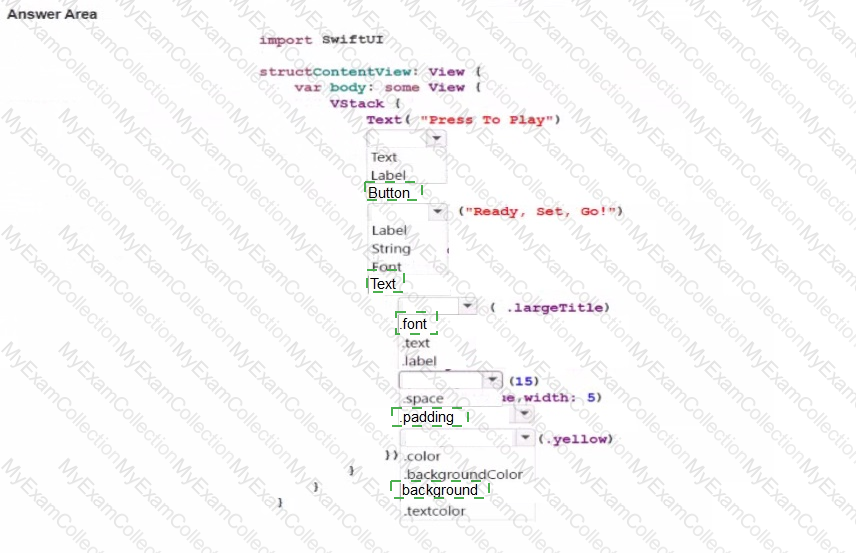
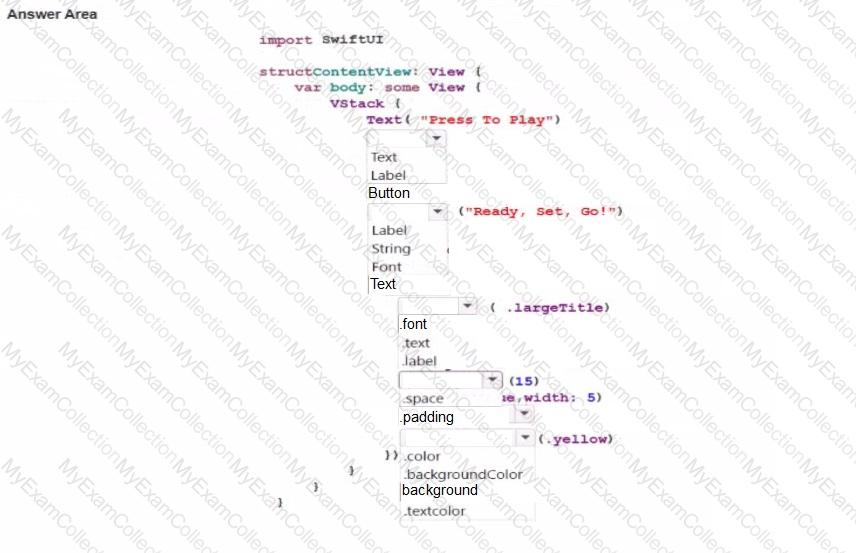
Complete the code by selecting the correct option from each drop-down list to create the following screen.

Note: You will receive partial credit for each correct answer.
Full Access
Answer:
Answer: